

SafePoint IT Named to the 2026 Inc. 5000 List
SafePoint IT has been named to the 2026 Inc. 5000 list, the annual ranking of...
Ask a business owner whether their QuickBooks data is backed up and you'll usually get a confident yes. "It's in the cloud. Intuit's got it." It feels obviously true. Your books live on Intuit's servers, Intuit is a huge company, and huge companies back things up.
Here's the uncomfortable part. Intuit does back up QuickBooks. It does not back up your QuickBooks data the way you think, and the gap between those two things is where businesses lose a year of bookkeeping in an afternoon.
We ran into this with a client recently. What we found was bad enough, and the "official" fix Intuit points you toward is expensive enough, that it's worth walking through in plain terms. If you run your business on QuickBooks Online, this is a 10-minute read that could save you a very bad week.
This is the single most common misunderstanding about cloud software, and it isn't unique to QuickBooks. It applies to Microsoft 365, Google Workspace, Salesforce, and nearly every SaaS tool your business runs on.
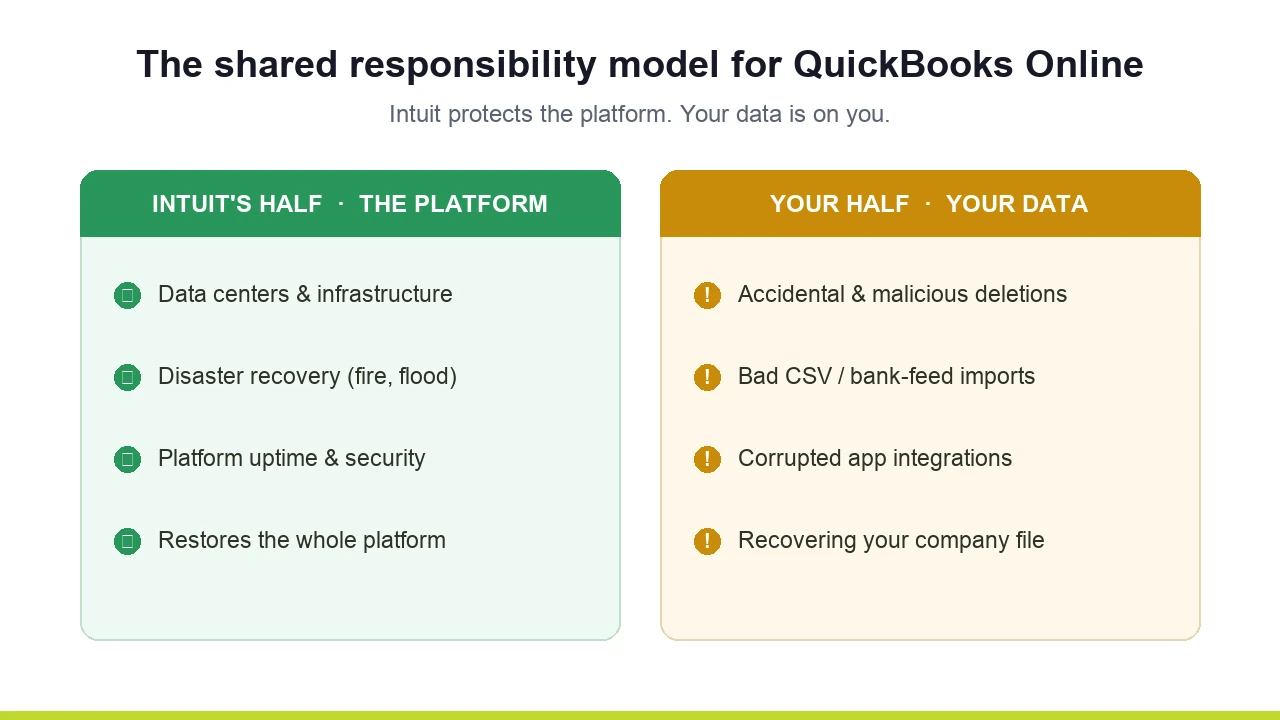
Cloud platforms operate on something called the shared responsibility model. It splits the job of protecting your data into two halves.
Intuit's half is the platform. If a data center catches fire, if a hurricane takes out a region, if their infrastructure fails, Intuit can restore the whole QuickBooks platform. That's real, and it's genuinely good. It's also not your problem, and it was never the thing you needed to worry about.
Your half is your data. The individual records inside your company file. And the things that actually destroy that data have nothing to do with hurricanes:
When any of that happens, Intuit's platform is working perfectly. The data is just gone, because you deleted it, and a working platform faithfully records that you deleted it. Intuit's disaster recovery doesn't undo your mistakes. That part was always on you. Most owners just never knew it.
So you go looking for the backup feature. Here's what you find.
QuickBooks Online has four plans. As of 2026, they run roughly:
QuickBooks does have a real, built-in backup and restore tool. It takes automatic snapshots and lets you roll your company data back to a specific point in time, which is exactly what you want when someone fat-fingers a deletion.
It's only available on Advanced. The $275 plan.
If you're on Plus like most businesses your size, getting native backup means jumping to Advanced. That's $160 more per month. About $1,920 a year, for what most people assume they already have. And Intuit's prices don't sit still. They raised every plan 15 to 20 percent in mid-2025, and those rates carry into 2026 renewals. (If you're still deciding between editions, our guide to QuickBooks Online vs. Desktop breaks down the trade-offs.)
It gets worse once you look closely at what that $1,920 actually buys, because the native tool has two limits most people don't discover until they need it:
It only goes back one year. Backups older than one previous calendar year aren't retrievable. If a problem from 14 months ago surfaces during tax prep, the native backup can't help you.
It doesn't back up everything. Budgets, inventory history and adjustments, and a handful of other data types are excluded. You can restore a lot, but not all of it.
And in a small twist that tells you how much attention this feature gets: in January 2026, Intuit quietly moved it out of the App Center to the gear-icon menu. Plenty of Advanced customers who are paying for backup right now don't know where it lives, or that they have to turn it on at all.
So the "official" path is: pay the most for the plan, turn on a feature you have to go hunting for, and still only get partial coverage with a one-year ceiling. There's a better way, and it costs a fraction.
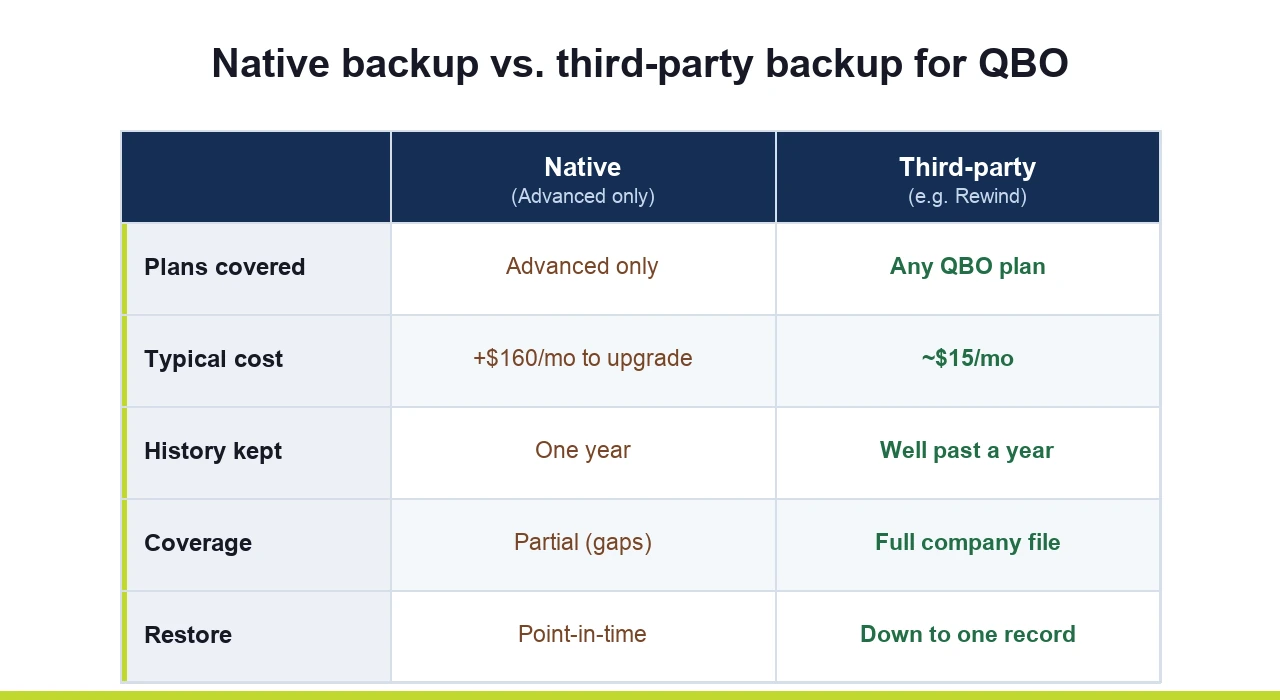
This is the part that surprises people. You do not need to upgrade to Advanced to protect your QuickBooks data. Purpose-built third-party backup tools connect to any QuickBooks Online plan, including Simple Start and Plus, and in most cases do the job better than the native feature for a small fraction of a plan upgrade. (For the wider picture beyond QuickBooks, see our roundup of the best cloud backup solutions for small businesses.)
A few worth knowing:
Rewind is the best-known option, trusted by tens of thousands of organizations. It runs continuous automatic backups and lets you restore at the account level or down to a single invoice or bill. Pricing starts low, in the mid-teens per month for daily backup, though it scales with your data, so confirm the current rate for your account size.
Skyvia offers automatic daily and on-demand backups with browser-based restore, and it markets HIPAA and PCI DSS compliance. That compliance posture matters if you're a medical practice, a clinic, or anyone handling protected or cardholder data.
Druva sits at the more enterprise end, useful if you want QuickBooks folded into a broader, centrally managed data-protection setup rather than a standalone tool.
Compare the math. Native backup means moving to Advanced at $275/month and accepting a one-year limit and partial coverage. A dedicated tool like Rewind sits in the neighborhood of $15/month, works on the plan you already have, and is built to do one thing well: get your data back fast when something goes wrong. For most businesses that's the difference between roughly $1,900 a year and a couple hundred, for better protection.
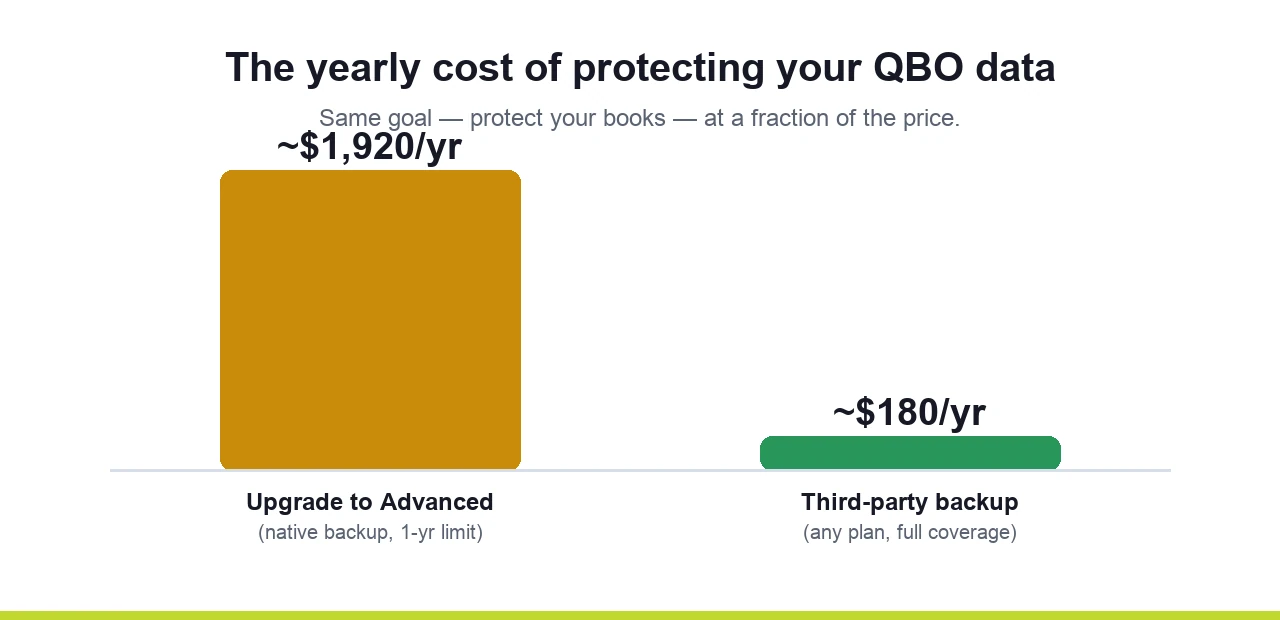
(Vendor prices move, and Rewind in particular quotes based on your user count, so treat these as ballpark and verify the current number before you commit.)
If you run on QuickBooks Online, three steps:
None of this is hard. It's just easy to never get around to, right up until the afternoon you need it and discover it was never there.
This is squarely the kind of thing we handle for clients every day. We'll figure out which QuickBooks plan you're on, whether anything is actually protecting your data, and what the right backup and recovery setup looks like for your business and your compliance needs. Then we set it up and manage it, so it's one less thing you ever have to think about.
And QuickBooks is only one tool. The same shared-responsibility gap applies to your Microsoft 365 email, your Google Workspace files, and your Salesforce records. If it's worth protecting in QuickBooks, it's worth a look everywhere your business data lives. That's the heart of our managed IT and cybersecurity work.
The fastest way to find out where you stand: book a 15-minute call. No jargon, no pressure, just a straight answer on whether your QuickBooks data is actually protected and what it would take to fix it if it isn't.